Why Choose an eSIM for Morocco?
Traveling to Morocco? An eSIM lets you stay connected without swapping physical SIMs. eSIM Maroc offers instant delivery, unlimited data plans, and coverage across Morocco including Marrakech, Casablanca, and the Sahara. No roaming fees, no hassle.
Check iPhone Compatibility
eSIM is supported on iPhone XS, XR, and newer models (including iPhone SE 2nd gen and later). To verify, go to Settings > General > About and look for 'Available eSIM'. If unsure, check your phone compatibility.
How to Activate Your Morocco eSIM on iPhone
Step 1: Purchase Your eSIM Plan
Choose a plan from Morocco eSIM plans. After purchase, you'll receive a QR code via email. Keep it handy.
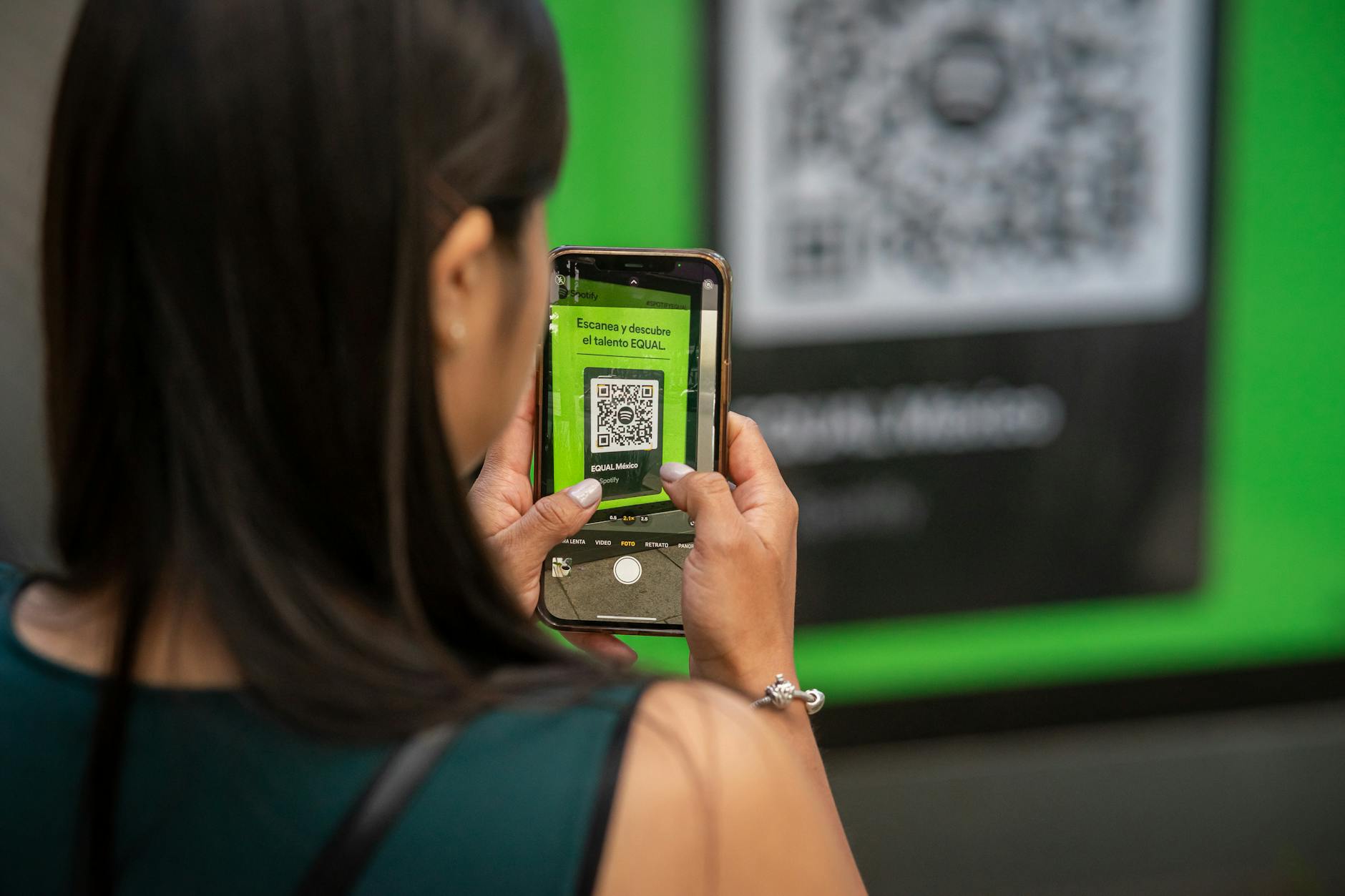
Step 2: Open Camera and Scan QR Code
On your iPhone, open the Camera app and point it at the QR code. Tap 'Cellular Plan Detected' at the top. If the notification doesn't appear, go to Settings > Cellular > Add Cellular Plan and scan manually.
Step 3: Label Your eSIM
Assign a label like 'Travel' or 'Morocco'. This helps you identify plans if you have multiple eSIMs.
Step 4: Set Default Line (Optional)
You can choose which line to use for calls, messages, and data. For data-only eSIMs, set your primary SIM for calls and the eSIM for data.
Step 5: Enable Data Roaming
Go to Settings > Cellular > Cellular Data, select your Morocco eSIM, and toggle on 'Data Roaming'. This is required for the eSIM to connect to Moroccan networks.
Step 6: Activate and Test
Your eSIM should activate automatically. Open Safari to test. If not, restart your iPhone or try manual network selection under Settings > Cellular > Network Selection.
Troubleshooting Tips
- No service after scanning: Ensure you have internet (Wi-Fi or cellular). Restart your iPhone.
- QR code not working: Request a resend via resend QR code.
- Can't add eSIM: Update to latest iOS. If still issues, contact support.
Frequently Asked Questions
Can I use eSIM and physical SIM together?
Yes, iPhone supports Dual SIM with one physical and one eSIM. You can keep your home SIM for calls and use the eSIM for data.
Does eSIM work in all Morocco?
eSIM Maroc partners with Orange Maroc and Maroc Telecom, offering strong coverage in cities, coastal areas, and major highways. Remote desert areas may have limited signal. Check Morocco network coverage.
How do I top up my eSIM?
Log into your eSIM Maroc account and purchase a new plan. The new QR code will add to your existing eSIM without losing your number.
What if I delete my eSIM by mistake?
Contact support with your order details. We can reissue a QR code.
Is eSIM secure?
Yes, eSIMs are encrypted and cannot be physically stolen. They are as secure as physical SIMs.
Conclusion
Activating a Morocco eSIM on iPhone is quick and easy. With eSIM Maroc, you get reliable coverage, instant setup, and affordable data. Ready to travel? Browse our Morocco eSIM plans and stay connected from the moment you land.